
Beautiful File Upload Widget for Angular
(Works out-the-box, storage included)


Get Started — Try on StackBlitz
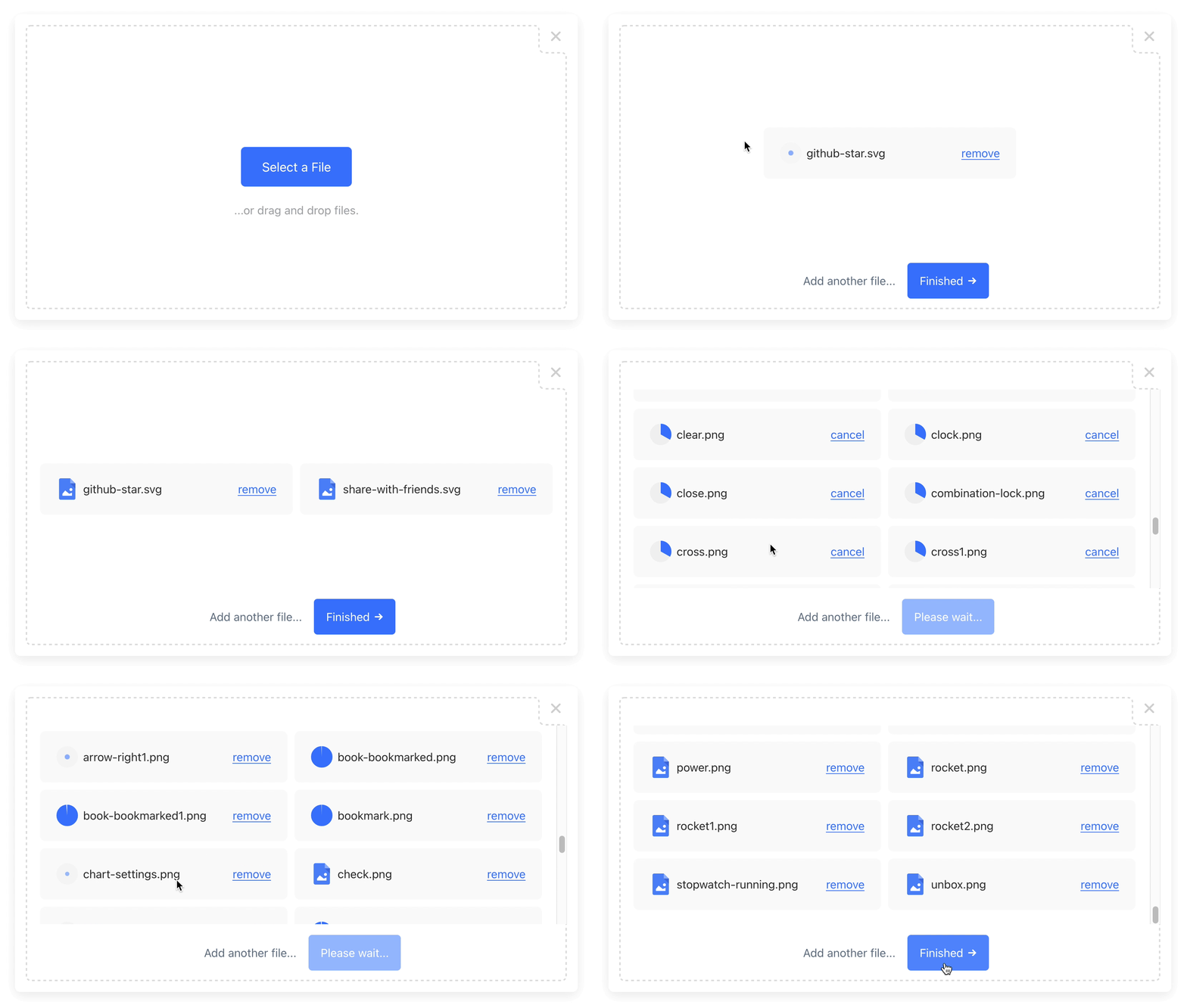
100% Serverless File Upload Widget
Powered by Bytescale
Supports: Image Cropping, Video Previews, Document Previews, Drag & Drop, and more...
Full Documentation • Headless SDK • Media Processing APIs • Storage • CDN
Installation
Install via NPM:
npm install @bytescale/upload-widget @bytescale/upload-widget-angular
Or via YARN:
yarn add @bytescale/upload-widget @bytescale/upload-widget-angular
Or via a <script> tag:
<script src="https://js.bytescale.com/upload-widget-angular/v4"></script>
Usage
Add the UploadWidgetModule to your app:
import { NgModule } from "@angular/core";
import { BrowserModule } from "@angular/platform-browser";
import { UploadWidgetModule } from "@bytescale/upload-widget-angular";

import { AppComponent } from "./app.component";

@NgModule({
  declarations: [AppComponent],
  imports: [
    BrowserModule,
    UploadWidgetModule // <-- Add the UploadWidgetModule here.
  ],
  bootstrap: [AppComponent]
})
export class AppModule {}
Components & Directives
Choose one of these options:
Option 1: Create an Upload Button — Try on StackBlitz
The uploadButton directive displays a file upload modal on click.
Inputs:
uploadOptions(required): an object following theUploadWidgetConfiginterface.uploadComplete(optional): a callback containing a single parameter — an array of uploaded files.
import { Component } from '@angular/core';
import { UploadWidgetConfig, UploadWidgetResult } from '@bytescale/upload-widget';

@Component({
  selector: 'app-root',
  template: `
    <a href="{{ uploadedFileUrl }}" target="_blank">{{ uploadedFileUrl }}</a>
    <button
      uploadButton
      [uploadOptions]="options"
      [uploadComplete]="onComplete"
    >
      Upload a file...
    </button>
  `,
})
export class AppComponent {
  options: UploadWidgetConfig = {
    apiKey: 'free', // Get API keys from: www.bytescale.com
    multi: false
  };
  onComplete = (files: UploadWidgetResult[]) => {
    this.uploadedFileUrl = files[0]?.fileUrl;
  };
  uploadedFileUrl = undefined;
}
Option 2: Create a Dropzone — Try on StackBlitz
The upload-dropzone component renders an inline drag-and-drop file uploader.
Inputs:
options(required): an object following theUploadWidgetConfiginterface.onComplete(optional): a callback containing the array of uploaded files as its parameter.onUpdate(optional): same as above, but called after every file upload or removal.width(optional): width of the dropzone.height(optional): height of the dropzone.
import { Component } from "@angular/core";
import { UploadWidgetConfig, UploadWidgetResult, UploadWidgetOnUpdateEvent } from '@bytescale/upload-widget';

@Component({
  selector: "app-root",
  template: `
    <upload-dropzone [options]="options"
                     [onUpdate]="onUpdate"
                     [width]="width"
                     [height]="height">
    </upload-dropzone>
  `
})
export class AppComponent {
  options: UploadWidgetConfig = {
    apiKey: 'free', // Get API keys from: www.bytescale.com
    multi: false
  };
  onUpdate = ({ uploadedFiles, pendingFiles, failedFiles }: UploadWidgetOnUpdateEvent) => {
    const uploadedFileUrls = uploadedFiles.map(x => x.fileUrl).join("\n");
    console.log(uploadedFileUrls);
  };
  width = "600px";
  height = "375px";
}
Special behaviour for dropzones:
onCompleteonly fires ifshowFinishButton = true(when the user clicks "Finish").
onUpdatemust be used whenshowFinishButton = false.Default value:
showFinishButton = false
Result
The callbacks receive a Array<UploadWidgetResult>:
{
  fileUrl: "https://upcdn.io/FW25...",   // URL to use when serving this file.
  filePath: "/uploads/example.jpg",      // File path (we recommend saving this to your database).

  accountId: "FW251aX",                  // Bytescale account the file was uploaded to.

  editedFile: undefined,                 // Edited file (for image crops). Same structure as below.

  originalFile: {
    fileUrl: "https://upcdn.io/FW25...", // Uploaded file URL.
    filePath: "/uploads/example.jpg",    // Uploaded file path (relative to your raw file directory).
    accountId: "FW251aX",                // Bytescale account the file was uploaded to.
    originalFileName: "example.jpg",     // Original file name from the user's machine.
    file: { ... },                       // Original DOM file object from the <input> element.
    size: 12345,                         // File size in bytes.
    lastModified: 1663410542397,         // Epoch timestamp of when the file was uploaded or updated.
    mime: "image/jpeg",                  // File MIME type.
    metadata: {
      ...                                // User-provided JSON object.
    },
    tags: [
      "tag1",                            // User-provided & auto-generated tags.
      "tag2",
      ...
    ]
  }
}
⚙️ Configuration
All configuration is optional (except for the apiKey field, which is required).
const options = {
  apiKey: "free",                 // Get API keys from: www.bytescale.com
  locale: myCustomLocale,         // EN_US by default. (See "Localization" section below.)
  maxFileCount: 5,                // Unlimited by default (or 1 if multi: false).
  maxFileSizeBytes: 1024 ** 2,    // Unlimited by default.
  mimeTypes: ["image/*"],         // Unrestricted by default. Supports * wildcard suffix.
  multi: false,                   // False by default.
  onInit: ({                      // Exposes lifecycle methods for the component.
    close,                        // Closes the widget when called.
    reset,                        // Resets the widget when called.
    updateConfig                  // Updates the widget's config by passing a new config
  }) => {},                       // object to the method's first parameter.
  onUpdate: (event) => {          // Called each time the Upload Widget's list of files change.
    // event.pendingFiles         // Array of files that are either uploading or queued.
    // event.failedFiles          // Array of files that failed to upload (due to network or validation reasons).
    // event.uploadedFiles        // Array of files that have been uploaded and not removed.
  },
  onPreUpload: async file => ({
    errorMessage: "Uh oh!",       // Displays this validation error to the user (if set).
    transformedFile: file         // Uploads 'transformedFile' instead of 'file' (if set).
  }),
  showFinishButton: true,         // Show/hide the "finish" button in the widget.
  showRemoveButton: true,         // Show/hide the "remove" button next to each file.
  styles: {
    breakpoints: {
      fullScreenWidth: 750,       // Full-screen mode activates when the screen is at or below this width.
      fullScreenHeight: 420       // Full-screen mode activates when the screen is at or below this height.
    },
    colors: {
      primary: "#377dff",         // Primary buttons & links
      active: "#528fff",          // Primary buttons & links (hover). Inferred if undefined.
      error: "#d23f4d",           // Error messages
      shade100: "#333",           // Standard text
      shade200: "#7a7a7a",        // Secondary button text
      shade300: "#999",           // Secondary button text (hover)
      shade400: "#a5a6a8",        // Welcome text
      shade500: "#d3d3d3",        // Modal close button
      shade600: "#dddddd",        // Border
      shade700: "#f0f0f0",        // Progress indicator background
      shade800: "#f8f8f8",        // File item background
      shade900: "#fff"            // Various (draggable crop buttons, etc.)
    },
    fontFamilies: {
      base: "arial, sans-serif"   // Base font family (comma-delimited).
    },
    fontSizes: {
      base: 16                    // Base font size (px).
    }
  },
  path: {                         // Optional: a string (full file path) or object like so:
    fileName: "Example.jpg",      // Supports path variables (e.g. {ORIGINAL_FILE_EXT}).
    folderPath: "/uploads"        // Please refer to docs for all path variables.
  },
  metadata: {
    hello: "world"                // Arbitrary JSON metadata (saved against the file).
  },
  tags: ["profile_picture"],      // Requires a Bytescale account.
  editor: {
    images: {
      allowResizeOnMove: true,    // True by default. If false, prevents cropper from resizing when moved.
      preview: true,              // True by default if cropping is enabled. Previews PDFs and videos too.
      crop: true,                 // True by default.
      cropFilePath: image => {    // Choose the file path used for JSON image crop files.
        const {filePath} = image  // In:  https://www.bytescale.com/docs/types/UploadedFile
        return `${filePath}.crop` // Out: https://www.bytescale.com/docs/types/FilePathDefinition
      },
      cropRatio: 4 / 3,           // Width / Height. Undefined enables freeform (default).
      cropShape: "rect"           // "rect" (default) or "circ".
    }
  },
}
🏳️ Localization
Default is EN_US:
const myCustomLocale = {
  addAnotherFileBtn: "Add another file...",
  addAnotherImageBtn: "Add another image...",
  cancelBtn: "cancel",
  cancelBtnClicked: "cancelled",
  cancelPreviewBtn: "Cancel",
  continueBtn: "Continue",
  cropBtn: "Crop",
  customValidationFailed: "Failed to validate file.",
  doneBtn: "Done",
  fileSizeLimitPrefix: "File size limit:",
  finishBtn: "Finished",
  finishBtnIcon: true,
  imageCropNumberPrefix: "Image",
  maxFilesReachedPrefix: "Maximum number of files:",
  maxImagesReachedPrefix: "Maximum number of images:",
  orDragDropFile: "...or drag and drop a file.",
  orDragDropFileMulti: "...or drag and drop files.",
  orDragDropImage: "...or drag and drop an image.",
  orDragDropImageMulti: "...or drag and drop images.",
  processingFile: "Processing file...",
  removeBtn: "remove",
  removeBtnClicked: "removed",
  submitBtnError: "Error!",
  submitBtnLoading: "Please wait...",
  unsupportedFileType: "File type not supported.",
  uploadFileBtn: "Upload a File",
  uploadFileMultiBtn: "Upload Files",
  uploadImageBtn: "Upload an Image",
  uploadImageMultiBtn: "Upload Images",
  xOfY: "of"
}
🌐 API Support
🌐 File Management APIs
Bytescale provides a wide range of File Management APIs:
🌐 Media Processing APIs (Image/Video/Audio)
Bytescale also provides real-time Media Processing APIs:
- Image Processing APIs (resize, crop, convert, compress & watermark)
- Video Processing APIs (transcode, optimize, resize & extract metadata)
- Audio Processing APIs (transcode, optimize, trim & extract metadata)
Image Processing API (Original Image)
Here's an example using a photo of Chicago:

https://upcdn.io/W142hJk/raw/example/city-landscape.jpg
Image Processing API (Transformed Image)
Using the Image Processing API, you can produce this image:

https://upcdn.io/W142hJk/image/example/city-landscape.jpg
  ?w=900
  &h=600
  &fit=crop
  &f=webp
  &q=80
  &blur=4
  &text=WATERMARK
  &layer-opacity=80
  &blend=overlay
  &layer-rotate=315
  &font-size=100
  &padding=10
  &font-weight=900
  &color=ffffff
  &repeat=true
  &text=Chicago
  &gravity=bottom
  &padding-x=50
  &padding-bottom=20
  &font=/example/fonts/Lobster.ttf
  &color=ffe400
Authentication
Bytescale supports two types of authentication:
API Keys
The Bytescale Upload Widget uses the apiKey parameter to authenticate with Bytescale.
With API key auth, the requester has access to the resources available to the API key:
-
Secret API keys (
secret_***) can perform all API operations (see: Bytescale JavaScript SDK). -
Public API keys (
public_***) can perform file uploads and file downloads only. File overwrites, file deletes, and all other destructive operations cannot be performed using public API keys.
You must always use public API keys (e.g. public_***) in your client-side code.
Each API key can have its read/write access limited to a subset of files/folders.
JWTs
JWTs are optional.
With JWTs, users can download private files directly via the URL, as authentication is performed implicitly via a session cookie or via an authorization header if service workers are enabled (see the serviceWorkerScript param on the AuthManager.beginAuthSession method). This allows the browser to display private files in <img>, <video>, and other elements.
With JWTs, users can upload files to per-user folders. This is because the permissions in the JWT's payload can be generated at runtime. The Bytescale Upload Widget internally uses the Bytescale JavaScript SDK to perform file uploads: the Bytescale JavaScript SDK handles the JWT refresh process with your API, requesting new JWTs when required, and includes your JWTs in all subsequent requests to the Bytescale API.
Learn more about the AuthManager and JWTs »
UrlBuilder
The Bytescale JavaScript SDK exports a UrlBuilder to construct URLs from filePaths:
import { UrlBuilder } from "@bytescale/sdk";
Recommended: you should always save filePaths to your DB instead of fileUrls.
Raw Files
To get the URL for the uploaded image /example.jpg in its original form, use the following:
// Returns: "https://upcdn.io/1234abc/raw/example.jpg"
UrlBuilder.url({
  accountId: "1234abc",
  filePath: "/example.jpg"
});
Images
To resize the uploaded image /example.jpg to 800x600, use the following:
// Returns: "https://upcdn.io/1234abc/image/example.jpg?w=800&h=600"
UrlBuilder.url({
  accountId: "1234abc",
  filePath: "/example.jpg",
  options: {
    transformation: "image",
    transformationParams: {
      w: 800,
      h: 600
    }
  }
});
Videos
To transcode the uploaded video /example.mov to MP4/H.264 in HD, use the following:
// Returns: "https://upcdn.io/1234abc/video/example.mov?f=mp4-h264&h=1080"
UrlBuilder.url({
  accountId: "1234abc",
  filePath: "/example.mov",
  options: {
    transformation: "video",
    transformationParams: {
      f: "mp4-h264",
      h: 1080
    }
  }
});
Audio
To transcode the uploaded audio /example.wav to AAC in 192kbps, use the following:
// Returns: "https://upcdn.io/1234abc/audio/example.wav?f=aac&br=192"
UrlBuilder.url({
  accountId: "1234abc",
  filePath: "/example.wav",
  options: {
    transformation: "audio",
    transformationParams: {
      f: "aac",
      br: 192
    }
  }
});
Archives
To extract the file document.docx from the uploaded ZIP file /example.zip:
// Returns: "https://upcdn.io/1234abc/archive/example.zip?m=extract&artifact=/document.docx"
UrlBuilder.url({
  accountId: "1234abc",
  filePath: "/example.zip",
  options: {
    transformation: "archive",
    transformationParams: {
      m: "extract"
    },
    artifact: "/document.docx"
  }
});
Antivirus
To scan the file example.zip for viruses, use the following:
// Returns: "https://upcdn.io/1234abc/antivirus/example.zip"
UrlBuilder.url({
  accountId: "1234abc",
  filePath: "/example.zip",
  options: {
    transformation: "antivirus"
  }
});
🙋 Can I use my own storage?
Bytescale supports AWS S3, Cloudflare R2, Google Storage, DigitalOcean, and Bytescale Storage.
👋 Create your Bytescale Account
Bytescale is the best way to upload, transform, and serve images, videos, and audio at scale.
Full Documentation
- Bytescale Upload Widget Docs »
- Bytescale Upload Widget (React) Docs »
- Bytescale Upload Widget (Angular) Docs »
- Bytescale Upload Widget (Vue.js) Docs »
- Bytescale Upload Widget (jQuery) Docs »