@computools/ react-native-动态-app-icon ###
以跨平台支持iOS和Android的方式动态地更改React Introduct中的应用程序图标. 适合主题、事件和个性化.
| iOS系统 | 机器人 |
|---|---|
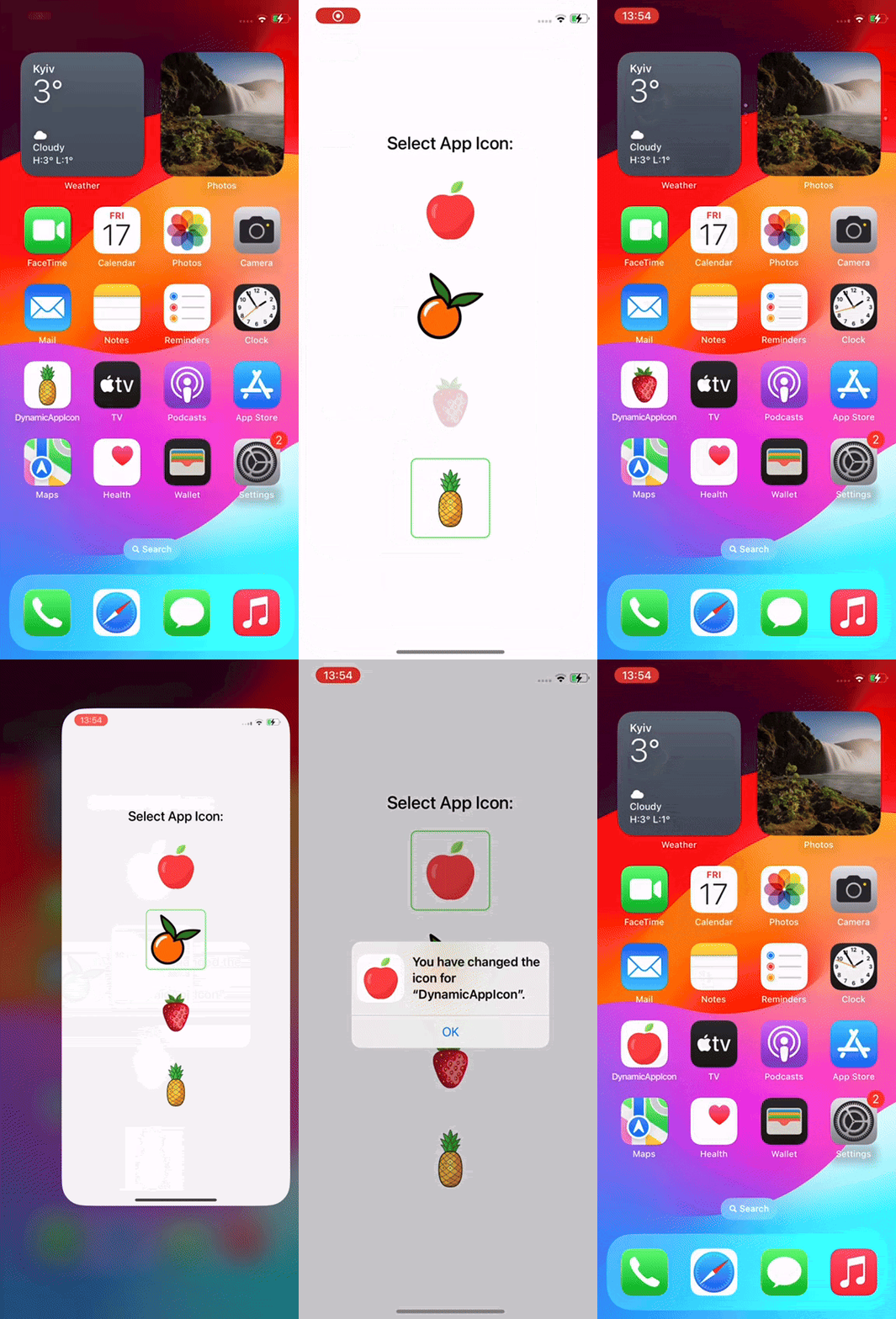
|

|
安装
使用 Yarn
yarn add @computools/react-native-dynamic-app-icon
使用 npm
npm i @computools/react-native-dynamic-app-icon
iOS 设置
安装软件包后, 运行 :
cd ios
pod install
生成 App 图标
使用类似工具生成应用程序图标 appicon.co (英语) 以确保包括所有必要的大小和格式.
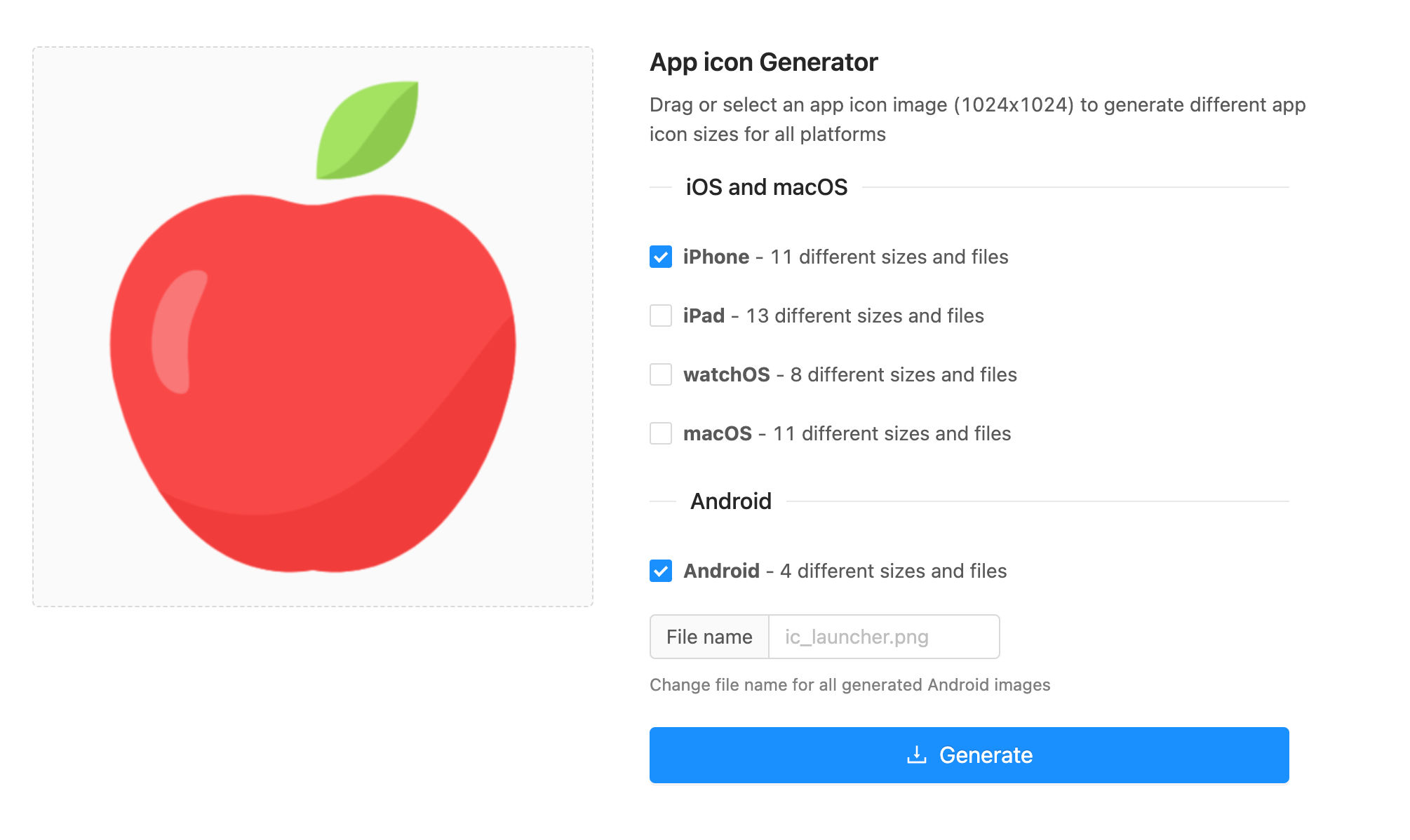
设置 App 图标
机器人
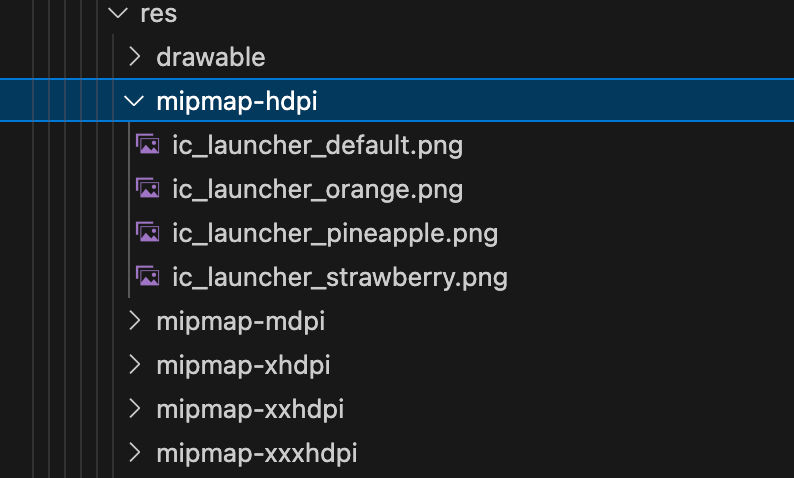
步骤1: 添加 App 图标文件
- 将生成的文件重命名为 ic 发射器 {icon type>.png 譬如说.
ic_launcher_orange.png。 。 。 . - 将默认图标文件重命名为
ic_launcher_default.png - 将应用程序图标文件移动到
android/app/src/main/res/mipmap-*。 。 。 .
步骤2:修改 AndroidManifest.xml
- 为每个图标添加活性化名.
<activity-alias
  android:name=".MainActivityPineapple" // .MainActivity + <icon-type>
  android:enabled="false"
  android:exported="true"
  android:icon="@mipmap/ic_launcher_pineapple"
  android:targetActivity=".MainActivity">
  <intent-filter>
    <action android:name="android.intent.action.MAIN" />
    <category android:name="android.intent.category.LAUNCHER" />
  </intent-filter>
</activity-alias>
重要数字 : android:enabled="true" 应该只针对 默认 活动别名,其他应该有 android:enabled="false"。 。 。 .
- 删除
<category android:name="android.intent.category.LAUNCHER" />活动名称android:enabled="true"。 。 。 .
注释:
- 不要忘记使用正确的文件
android:icon财务报告和审定财务报表android:name。 。 。 .android:name实值 。主要实际性+ 例如,用于android:icon=ic_launcher_orangeandroid:name=".MainActivityOrange"。 。 。 . - 别忘了换衣服
android:icon改为"@mipmap/ic_launcher_default"内<application>标签. - 确定您有活动名
android:icon=ic_launcher_default, (中文(简体) ),android:name=".MainActivityDefault"。 。 。 .
AndroidManifest.xml 示例:
<manifest xmlns:android="http://schemas.android.com/apk/res/android">

  <uses-permission android:name="android.permission.INTERNET" />

  <application
    android:name=".MainApplication"
    android:label="@string/app_name"
    android:icon="@mipmap/ic_launcher_default"
    android:allowBackup="false"
    android:theme="@style/AppTheme"
    android:supportsRtl="true">
    <activity
      android:name=".MainActivity"
      android:label="@string/app_name"
      android:configChanges="keyboard|keyboardHidden|orientation|screenLayout|screenSize|smallestScreenSize|uiMode"
      android:launchMode="singleTask"
      android:windowSoftInputMode="adjustResize"
      android:exported="true">
      <intent-filter>
        <action android:name="android.intent.action.MAIN" />
        <category android:name="android.intent.category.LAUNCHER" />
      </intent-filter>
    </activity>
    <activity-alias
      android:name=".MainActivityDefault"
      android:enabled="true"
      android:exported="true"
      android:icon="@mipmap/ic_launcher_default"
      android:targetActivity=".MainActivity">
      <intent-filter>
        <action android:name="android.intent.action.MAIN" />
      </intent-filter>
    </activity-alias>
    <activity-alias
      android:name=".MainActivityPineapple"
      android:enabled="false"
      android:exported="true"
      android:icon="@mipmap/ic_launcher_pineapple"
      android:targetActivity=".MainActivity">
      <intent-filter>
        <action android:name="android.intent.action.MAIN" />
        <category android:name="android.intent.category.LAUNCHER" />
      </intent-filter>
    </activity-alias>
    <activity-alias
      android:name=".MainActivityStrawberry"
      android:enabled="false"
      android:exported="true"
      android:icon="@mipmap/ic_launcher_strawberry"
      android:targetActivity=".MainActivity">
      <intent-filter>
        <action android:name="android.intent.action.MAIN" />
        <category android:name="android.intent.category.LAUNCHER" />
      </intent-filter>
    </activity-alias>
    <activity-alias
      android:name=".MainActivityOrange"
      android:enabled="false"
      android:exported="true"
      android:icon="@mipmap/ic_launcher_orange"
      android:targetActivity=".MainActivity">
      <intent-filter>
        <action android:name="android.intent.action.MAIN" />
        <category android:name="android.intent.category.LAUNCHER" />
      </intent-filter>
    </activity-alias>
  </application>
</manifest>
iOS系统
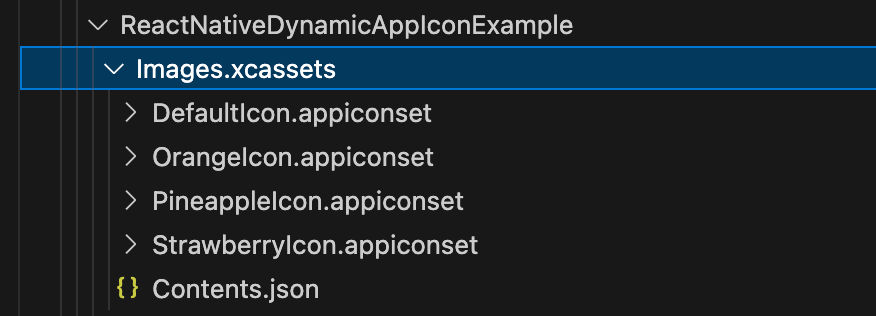
步骤1: 添加 App 图标文件
- 重命名已生成
AppIcon.appiconset文件夹到<icon-type>Icon.appiconset。 。 。 . - 重命名默认
AppIcon.appiconset改为DefaultIcon.appiconset。 。 。 . - 将所有.appiconset文件夹移动到
ios/<app-name>/Images.xcassets。 。 。 . - 更新
folder每个值Contents.json文件例如:"folder": "Images.xcassets/PineappleIcon.appiconset/"。 。 。 .
第2步:在Xcode中设置 App 图标
- 打开 Xcode;
- 去应用
General设置; - 滚动至
App Icons and Launch Screen· ; - 设定
App Icon改为DefaultIcon检查一下Include all app icon assets复选框.

第3步: 修改信息. plist
- 打开 Xcode, 转到
Info并插入密钥CFBundleIcons. - 内部
CFBundleIcons字典添加密钥CFBundleAlternateIcons。 。 。 . - 内部
CFBundleAlternateIcons为替代图标添加密钥 :
- 这个
key您将从代码中引用的名称 . - 设定第一个
array项到目标.appiconset的名称.
- 内部
CFBundleIcons设置默认图标名称CFBundlePrimaryIcon财务报告和审定财务报表UINewsstandIcon- > 图标文件 - > 项目0.
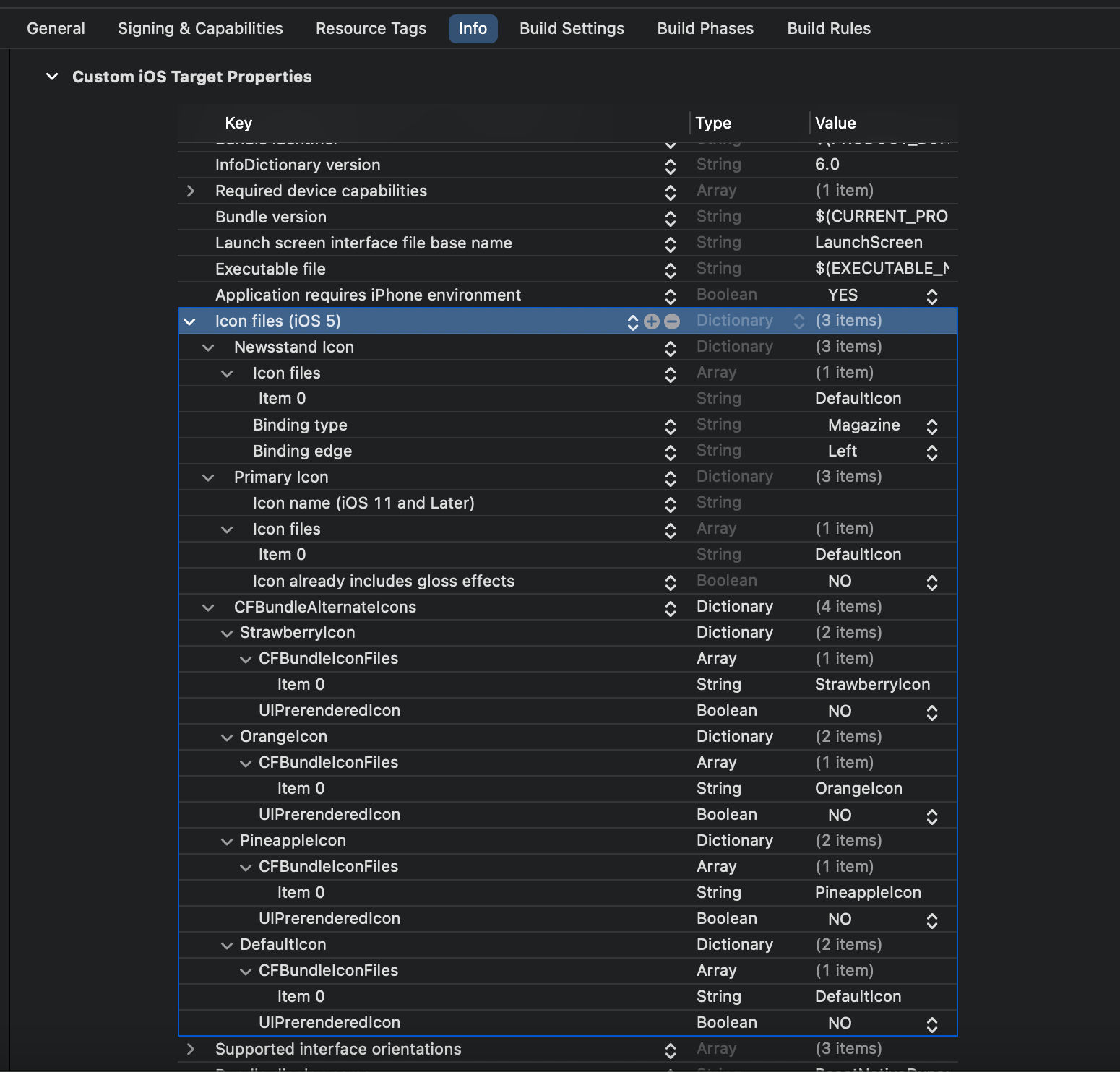
Info.plist 示例:
<key>CFBundleIcons</key>
<dict>
  <key>CFBundleAlternateIcons</key>
  <dict>
    <key>DefaultIcon</key>
    <dict>
      <key>CFBundleIconFiles</key>
      <array>
        <string>DefaultIcon</string>
      </array>
      <key>UIPrerenderedIcon</key>
      <false/>
    </dict>
    <key>OrangeIcon</key>
    <dict>
      <key>CFBundleIconFiles</key>
      <array>
        <string>OrangeIcon</string>
      </array>
      <key>UIPrerenderedIcon</key>
      <false/>
    </dict>
    <key>PineappleIcon</key>
    <dict>
      <key>CFBundleIconFiles</key>
      <array>
        <string>PineappleIcon</string>
      </array>
      <key>UIPrerenderedIcon</key>
      <false/>
    </dict>
    <key>StrawberryIcon</key>
    <dict>
      <key>CFBundleIconFiles</key>
      <array>
        <string>StrawberryIcon</string>
      </array>
      <key>UIPrerenderedIcon</key>
      <false/>
    </dict>
  </dict>
  <key>CFBundlePrimaryIcon</key>
  <dict>
    <key>CFBundleIconFiles</key>
    <array>
      <string>DefaultIcon</string>
    </array>
    <key>CFBundleIconName</key>
    <string></string>
    <key>UIPrerenderedIcon</key>
    <false/>
  </dict>
  <key>UINewsstandIcon</key>
  <dict>
    <key>CFBundleIconFiles</key>
    <array>
      <string>DefaultIcon</string>
    </array>
    <key>UINewsstandBindingEdge</key>
    <string>UINewsstandBindingEdgeLeft</string>
    <key>UINewsstandBindingType</key>
    <string>UINewsstandBindingTypeMagazine</string>
  </dict>
</dict>
方法
| 方法 | 说明 | 参数 | 回返 |
|---|---|---|---|
变化Icon<T extends string>(漫画名:T) | 将应用程序的图标更改为指定的图标 . 说明: 软件包在更改了应用程序图标后会自动关闭Android上的应用程序. 实施此行为是为了防止重复图标,不需要用户的额外行动. | 图标Name (T):要切换到的图标名称. | Promise<void>:以无效决定或以错误拒绝. |
获取Icon<T extends string>(a) 与《公约》有关的其他事项 | 获取当前活动应用程序图标的名称 . | 无 | Promise<T>: 以当前已使用的图标的名称决定,或以出错拒绝. |
使用量
更改图标
import { changeIcon } from '@computools/react-native-dynamic-app-icon';

const setAppIcon = async () => {
  try {
    await changeIcon('Orange');
  } catch (error) {
    // error handling
  }
}

setAppIcon();
获取图标
import { getIcon } from '@computools/react-native-dynamic-app-icon';

const getCurrentIcon = async () => {
  try {
    const currentIcon = await getIcon();
    // the logic of saving the currentIcon or other
  } catch (error) {
    // error handling
  }
}

getCurrentIcon();
捐款
见 贡献指南 学习如何为储存库和发展工作流程作出贡献.
许可证
麻省理工学院
制造的 创建- 反应- 本土- 图书馆