页:1 简体中文
导言
适合角生态的手写签名插件 suppprt V15.
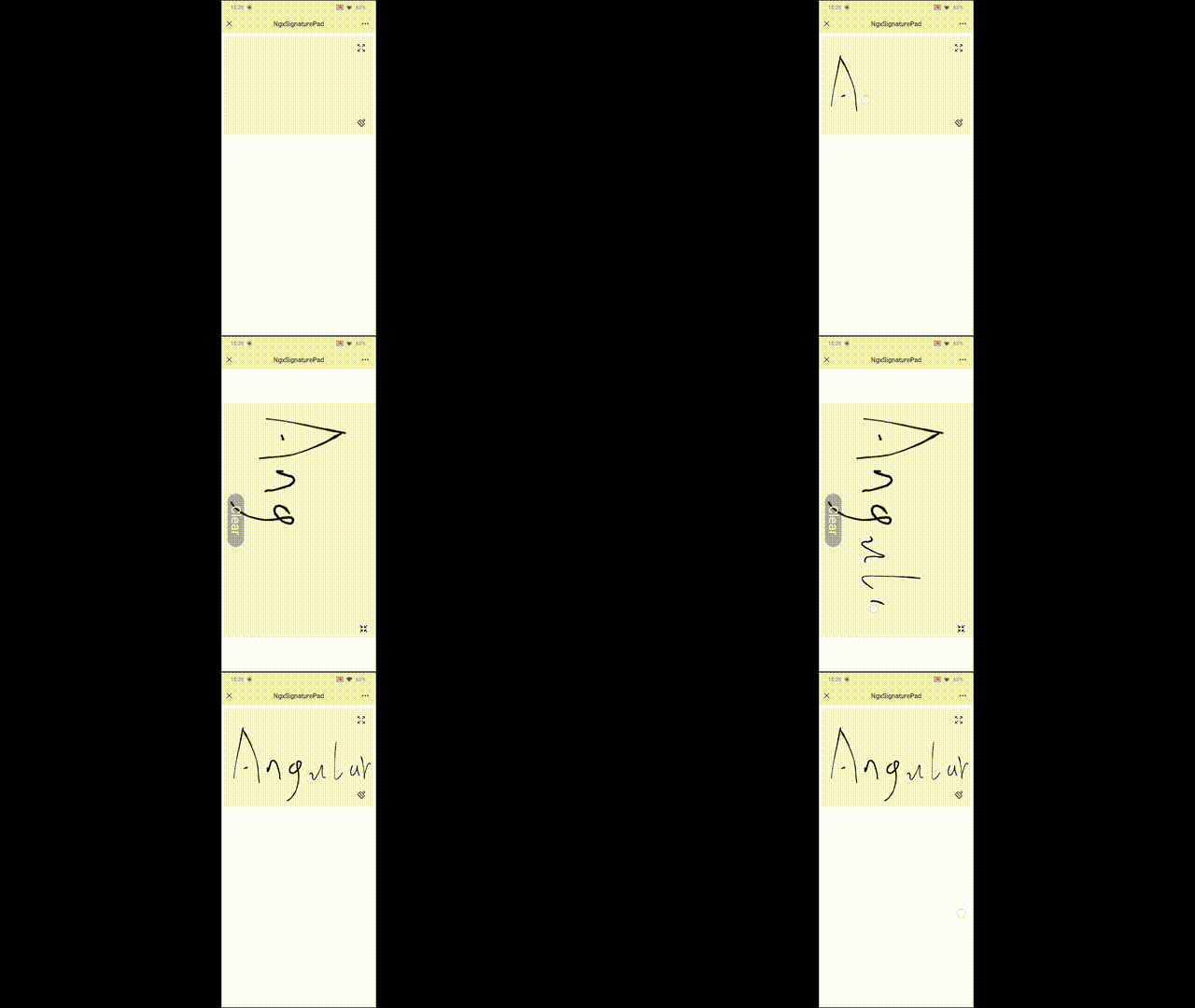
演示
您可以看到 API 的所有详细方向并演示 这里。在 PC 和 Mobile 模式下有模糊的内容。 PC强调文档,Mobile强调实例.
方向
此工程基于画布插件 签名( p),而画布插件仅具有基本功能,例如 signature canvas我把它封了起来,它有以下特征:
- 为 Angular 提供 API 更合适的样式 .
- 提供本地插件中没有的特性, 如
modify state of signature manually, (中文)revert painting, (中文)fullScreen to sign诸如来. - 您可以在运行时间更改配置, 如宽度/ 高度 .
安装
国家预防机制
npm install --save @eve-sama/ngx-signature-pad
线条
yarn add --save @eve-sama/ngx-signature-pad
使用量
应用程序
import { BrowserModule } from '@angular/platform-browser';
import { NgModule } from '@angular/core';
import { AppComponent } from './app.component';

import { NgxSignaturePadModule } from '@eve-sama/ngx-signature-pad';

@NgModule({
  declarations: [
    AppComponent
  ],
  imports: [
    BrowserModule,
    // You need to import module of ngx-signature-pad
    NgxSignaturePadModule
  ],
  bootstrap: [AppComponent]
})
export class AppModule { }
应用程序
<ngx-signature-pad
  #signature
  [options]="options"
  (beginSign)="onBeginSign()"
  (endSign)="onEndSign()">
</ngx-signature-pad>
import { Component, ViewChild } from '@angular/core';
import { NgxSignaturePadComponent, NgxSignatureOptions } from '@eve-sama/ngx-signature-pad';

@Component({
  selector: 'app-root',
  templateUrl: './app.component.html'
})
export class AppComponent {
  /** Catch object, call functions via instance object */
  @ViewChild('signature') signature: NgxSignaturePadComponent;

  /** You can see more introduction in the below about NgxSignatureOptions */
  public options: NgxSignatureOptions = {
    backgroundColor: '#F4F5F5',
    width: 570,
    height: 300,
    css: {
      'border-radius': '16px'
    }
  };

  /** The begin event of sign */
  onBeginSign(): void { }

  /** The end event of sign */
  onEndSign(): void { }
}
Ngx 签名选项
| 参数 | 方向 | 类型 | 默认 |
|---|---|---|---|
dotSize | 单点半径. | number | (() => number) | - 说吧 |
minWidth | 一行最小宽度 . | number | 0.5 |
maxWidth | 线的最大宽度 . | number | 2.5 |
throttle | 每x毫秒绘制下个点最多一次。 把它设为0以关闭节奏. | number | 16 |
minDistance | 仅在上一个比x像素更远时添加下个点. | number | 0.5 |
backgroundColor | 用于清除背景的颜色 。 可以是上下文接受的任何颜色格式 。 满斯德. 如想将签名保存为JPEG图像,则使用"rgb(255,255,255)"(opaque white)等不透明的颜色. | string | 'rgba(0,0,0,0)' |
penColor | 画行用色相. 可以是上下文接受的任何颜色格式 。 满斯德. | string | 'black' |
velocityFilterWeight | 重量用于根据上一个速度来修改新的速度. | number | 0.7 |
width | 画布的宽度. | number | 300px |
height | 画布的高度. | number | 150px |
css | 自定义css of canvs,您可以看到演示代码以获取细节信息. 注意我们使用 Renderer2 生成 cs, 不确定它是否支持所有 css | { [key: string]: string } | - 说吧 |
实例方法
| 行为 | 方向 |
|---|---|
toDataURL() | 作为 PNG 获取其数据 URL . |
toDataURL("image/jpeg") | 作为 JPEG 获取其数据 URL . |
toDataURL("image/svg+xml") | 作为 SVG 获取其数据 URL . |
fromDataURL(dataUrl: string) | 从数据 URL 绘制签名图像, 您需要通过它 base64。 。 。 . |
toData() | 返回签名图像为 IPointGroup[]。 。 。 . |
fromData(pointGroups: IPointGroup[]) | 绘制签名图像从 IPointGroup[]。 。 。 . |
clear() | 清理画布. |
isEmpty() | 如果画布是空的, 返回真实, 否则返回虚假 . |
setDirty() | 那就把垫子的状态弄脏了 isEmpty() 返回虚假. |
setEmpty() | 设置垫的状态为空, 那么 isEmpty() 返回真实. |
revert() | 撤销最后的动作 。 请注意,如果您有更改 fullScreen() 财务报告和审定财务报表 miniScreen(),则 revert() 更改模式后无法工作。 在这种情况下,我不建议使用它. |
fullScreen() | 可以将模式更改为 fullScreen,fullScreen 签名的宽比与midScreen 签名相同. |
miniScreen() | 可以将模式更改为迷你Screen. 输入组件时,官方模式是迷你Screen. |
getContext() | 拿帆布来 Context这是关于画布,在得到 Context,你可以做任何你想做的事,例如你可以使用 drawImage 在帆布板上绘制一些东西,请在 PC 中看到演示 dragImage。 。 。 . |
运行时修改配置
此插件允许您在运行期间修改配置, 只要修改您想要通过的选项 。 注意您不仅可以更改选项的属性 。 因为 OnChanges 在这种情况下不会触发。 您需要重新指定选项 。 例如,初步备选方案如下:
const options: NgxSignatureOptions = {
  penColor: 'rgb(0, 0, 0)', // Black
  width: 300,
  height: 150
};
运行后代码,如果您想要更改笔的颜色,如果您将代码写入下面,则无效.
options.penColor = 'rgb(255, 0, 0)'; // Does not work, because can not trigger OnChanges
你需要重新分配如下.
const options: NgxSignatureOptions = {
  penColor: 'rgb(255, 0, 0)' // Change the black to red
  width: 300,
  height: 150
};